
Connect Microsoft Copilot Studio to Yapr.
Connect a Copilot Studio agent to Yapr, sign in securely, and test a read-only request with your existing workspace permissions.
To connect: Add https://mcp.yapr.si/mcp. Enable generative orchestration, choose OAuth 2.0 Dynamic discovery, complete Microsoft sign-in and Stackyapper consent, bind the connection, then run a read-only test and confirm it in the activity map.
Copilot Studio connects using your existing Yapr workspace permissions. The agent only sees tools available to the signed-in user, and Yapr checks access again before every request.
What does Yapr make available?
Yapr gives Copilot Studio a focused set of tools based on the signed-in user’s access. Instead of loading every operation from every connected app, Copilot finds the right approved tool when it needs one. Before running it, Yapr checks the workspace, app, user and group permissions, risk controls, and approval requirements.
Before you start
- Permission to edit the target agent in Microsoft Copilot Studio.
- Generative orchestration enabled for that agent.
- An active Yapr workspace with one healthy app connection.
- Permission to use at least one read-only Yapr tool.
- Browser access to complete Microsoft sign-in and Stackyapper consent.
Connect Yapr with the MCP onboarding wizard
- Enable orchestration: open Settings → Generative AI → Orchestration, select Yes, and save.
- Open the wizard: go to Tools → Add a tool → New tool → Model Context Protocol.
- Describe the server: name it Yapr and explain that it searches and runs only the business-system operations this user is permitted to access.
- Enter the endpoint: use
https://mcp.yapr.si/mcp. If your workspace already has a verified custom domain, use the endpoint shown in the Yapr portal. New custom domains require Business and approved MSP or consultant verification. - Configure authentication: select OAuth 2.0 → Dynamic discovery. Copilot Studio discovers the OAuth endpoints and dynamically registers; do not publish a client ID or secret.
- Authorize: complete Microsoft sign-in, confirm the intended workspace on the Stackyapper consent page, and approve.
- Bind the connection: select the connected Yapr account in the connection manager and save.
- Start fresh: open a new test session after changing the connection or orchestration mode.
These choices follow Microsoft’s official MCP onboarding and OAuth Dynamic discovery guide.
Choose the Copilot knowledge mode*
Web search is not required for the Yapr MCP connection. Choose it separately for each Copilot agent according to the customer’s policy for that Yapr workspace:
- Internal systems only: turn off Web Search on the agent’s Knowledge page. In Settings → Generative AI, also turn off Allow ungrounded responses to reduce answers produced without a configured tool or knowledge source.
- Internal systems plus public research: leave Web Search on. Copilot can combine public Bing results with Yapr results in the same answer.
Add this narrow instruction on the agent’s Overview page:
For business-system, customer, ticket, device, security, or internal
documentation requests, use the connected Yapr (or Stackyapper) MCP tools. If no permitted
operation or matching records are returned, say so. Do not substitute public web results
or model knowledge and describe them as connected-system data.
Microsoft documents the agent-level Web Search setting, the limits of Allow ungrounded responses, and how to write and publish agent instructions.
*Copilot settings are managed by the customer and may also be restricted by Microsoft admin policies. They shape how Copilot finds information. Yapr workspace permissions still decide which tools and records the agent can use. Check the activity map and Yapr audit log to confirm when Yapr was used.
Test a read-only request
Using Yapr (or the connected Stackyapper MCP server), find a read-only operation for [app] that can list [record type].
Return no more than five records. Do not create, update, delete, execute, or
otherwise change provider data.
Open the activity map and verify these three Yapr tool steps (built-in tool names currently use the stackyapper_ prefix):
stackyapper_search_toolsfinds a tool the signed-in user can use.stackyapper_get_tool_schemasloads the information that tool needs.stackyapper_execute_read_toolchecks access again and runs the read-only request.
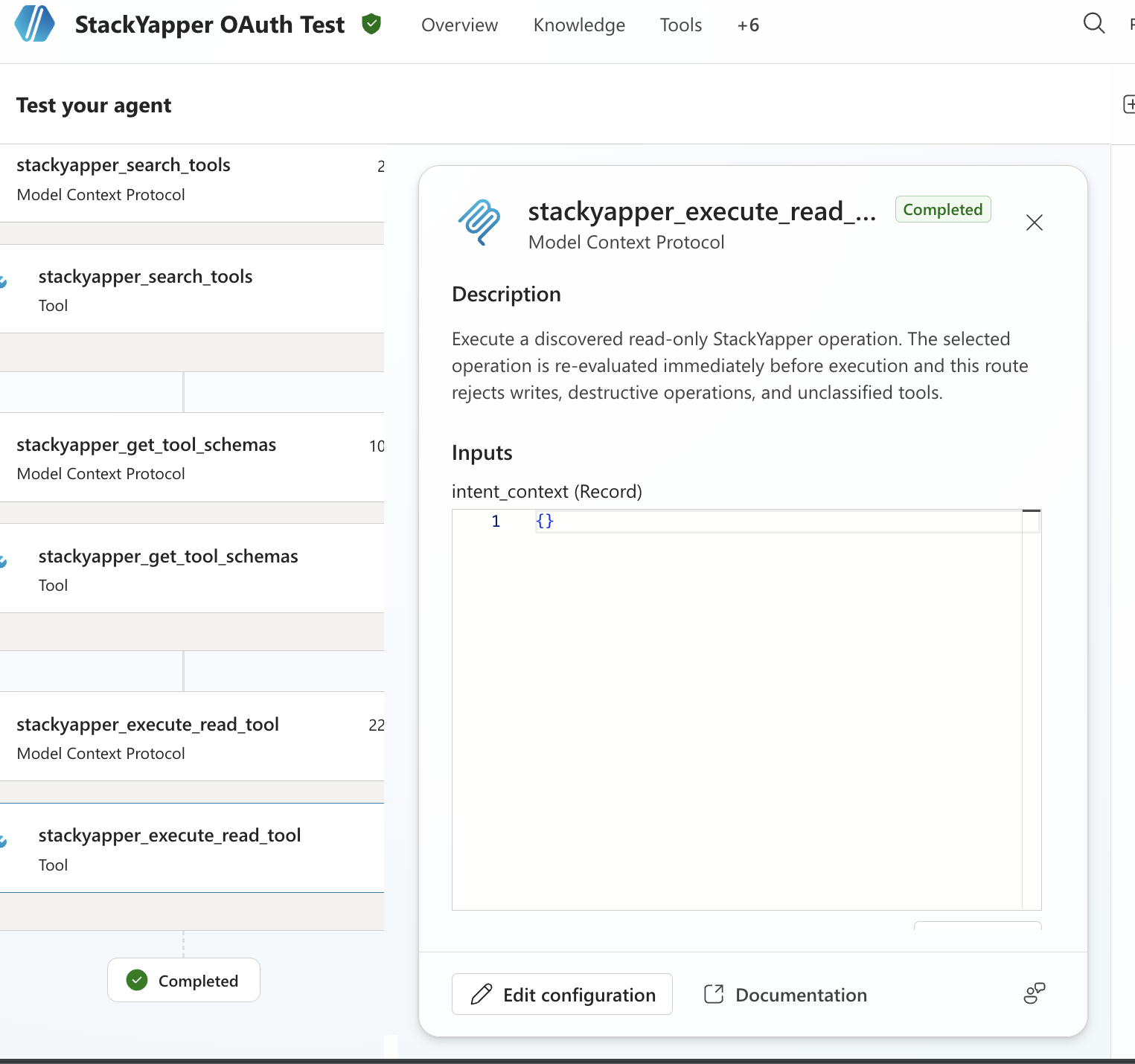
Microsoft’s activity-map guide explains how to inspect the selected plan, inputs, outputs, duration, and errors during testing.
Confirm the Yapr audit event
In the same Yapr workspace, open Audit and match the recent event by time, user, Copilot connection, app, action, result, and approximate duration. The audit log records how Yapr was used without storing the request details or data returned by the connected app.
Troubleshooting
| Result | Check |
|---|---|
| The server cannot be added | Confirm the /mcp endpoint and select OAuth 2.0 → Dynamic discovery. |
| Sign-in succeeds but the tool is unbound | Select the Yapr account in the connection manager, save, and start a fresh session. |
| No Yapr operation is selected | Confirm generative orchestration and use a specific server description and read-only request. |
| Search returns no operations | Ask an administrator to check app enablement and user or group grants. |
| The provider read fails | Repair the underlying app connection in Yapr, then repeat the read-only test. |
Continue with the general MCP client setup guide or review Yapr’s authorization model.